

Table of Contents
If you own a BMW from the last few years you already know how much the software side of things has changed. It’s not just about maps anymore. The whole driving experience from your infotainment layout to how your driver assistance features respond depends on having the latest vehicle software installed. And the good news is that staying up to date has never been easier thanks to the myBMW app and BMW’s built in remote update system.
But a lot of people still don’t know how it works. Or they’ve tried it once and hit a wall because the BMW software update was not working the way they expected. So let’s just walk through the whole thing properly.
What Is a BMW Remote Software Upgrade Anyway
Plain and simple it’s a way to update your vehicle’s software without driving to a dealership. BMW calls it the RSU system and it works a lot like your smartphone or computer does when it checks for new updates in the background. Your BMW connects to Wi Fi or uses its built in data connection and when new software is available for your BMW the system either notifies you directly or you can check manually through the central information display or the myBMW app.
It covers a wider range of things than most people expect. That includes iDrive behavior and BMW widget layouts and navigation data and even some enhancement to driver assistance and remote services. The new version rollout in 2026 with OS 8.5 has been particularly solid and a lot of owners running compatible models have already noticed improvements in how responsive the whole system feels. So it’s not just a small tweak. It’s a real software upgrade.
How to Perform a Remote Software Upgrade Step by Step
Here’s the thing most people don’t realize. You don’t need to visit a BMW service center for this. You don’t even need to call a client advisor or speak to a BMW genius unless something goes wrong. The whole process runs directly from your BMW or through your phone.
Start by making sure your vehicle is safely parked. That part matters. The system won’t let you start the upgrade while you’re driving and it genuinely needs to be stationary and ideally connected to a charger if you’re doing a longer update.
Open the myBMW app on your smartphone. Thanks to the myBMW app the whole thing is laid out clearly. Tap the section for your vehicle and you’ll see a software section in the menu. From there tap remote software upgrade and you’ll see whether an update is ready to be installed or still downloading.
If it’s ready just follow the prompts to start or schedule the installation for a specific date and time that is convenient for you. That scheduling option is genuinely useful if you don’t want to wait around during the update.
In the app you can also go into system settings and scroll to download settings. From there you can turn on download automatically and download via Wi Fi only if you want to control how and when things download. That second option is smart to enable if you’re watching your data usage.
Once you start the upgrade it generally takes about 20 minutes depending on the size of the update and your connection speed. Just leave the car as it is. Don’t turn the ignition off mid way through and don’t disconnect from Wi Fi. The system will prompt you to install any remaining components when it’s done and you’ll get a notification at the end of your drive to let you know it is ready.
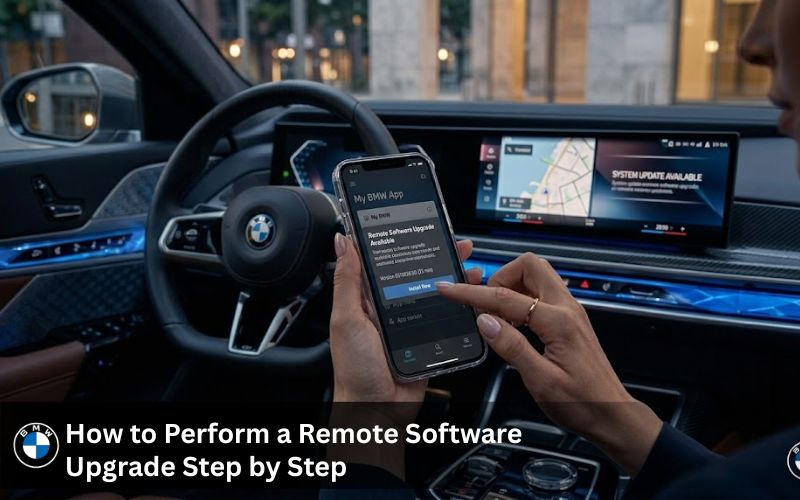
If you prefer to do it directly from your BMW you can go through the iDrive menu. Head into vehicle settings and look for the software option. It’ll show you the current vehicle software version and any new software that’s pending. Same process from there follow the prompts and let it run.
Getting Notifications Right So You Never Miss an Update
One thing that trips people up is that they turn off push notifications and then wonder why they’re not hearing about updates. If you want to be notified when a remote software upgrade is available you need to make sure you’ve allowed push notifications on your phone for the myBMW app.
Go into your phone settings and find the my BMW app permissions. Make sure push notifications is turned on. After that the phone will be notified automatically whenever new software drops for your specific model. The notification will tell you it’s ready to be installed and all you need to do is follow the steps from there.
You can also tap check status below the image of your vehicle inside the app at any time if you want to manually check rather than wait for a notification.
BMW Software Update Not Working? Here’s What to Check
This is honestly the most common question that comes through. Someone tries to run an update and it either stalls or won’t install or just sits at the same percentage for ages. What to do if your BMW software update is not working depends on the specific situation but there are a few common causes.
Weak Wi Fi is the biggest one. The system prefers a stable home network and if you’re connected to something patchy or trying to run it through mobile data it can struggle. Make sure the vehicle is within range of a strong Wi Fi signal and that download via Wi Fi only is turned on in the settings.
Battery level is another thing. If the car’s battery is low the system may pause the install or refuse to start. Connect to a charger before you kick things off especially for larger updates like a full OS 8.5 rollout.
Sometimes the issue is just a partial download that got corrupted. In that case go into the download settings area in iDrive and clear the pending update then try again fresh. It tends to resolve itself after that.
And if nothing works and you’re genuinely stuck then it’s worth reaching out to a BMW service center for support. But in most cases the fix is something simple on the connectivity side.
Remote Software Upgrade vs USB: Which One Should You Use
Not every BMW supports over the air updates. Older models running CIC or standard NBT systems think pre 2017 roughly don’t have the RSU capability built in. For those cars the BMW software update via USB is the right route.
The USB method is actually really straightforward and bimmernaviupdates.com has made it even simpler. You get a download link or a pre loaded USB kit and the process runs directly from the iDrive menu in the car. It’s not as seamless as tapping an app on your smartphone but it gets the job done and it works on a much wider range of models.
If you’re looking for a quick answer on which to use just check your model year and system type. Anything from around 2018 onwards on the newer NBT Evo ID5/6 or the full iDrive 7 and OS 8.5 platforms will support remote updates. Anything older will need USB.
BMW Software Update Kosten: What It Actually Costs
Here’s where people get a shock when they walk into a dealership. A full navigation and software update at a BMW dealer can run anywhere from £150 to well over £400 depending on the model and what needs updating. That’s before you factor in the time it takes to drop the car off and collect it again.
The BMW ConnectedDrive store handles some updates directly and pricing there varies. Minor patches and system level enhancements tend to be included if you have an active ConnectedDrive subscription but full map upgrades and navigation activations usually carry a cost.
bimmernaviupdates.com sits in a very different place on pricing. Navigation map updates start from £49 and FSC codes start from £29 and there’s a lifetime FSC code option that means you pay once and you’re done. No annual renewal. No going back to the dealership every time BMW releases new software. That lifetime option in particular is something a lot of long term BMW owners genuinely appreciate once they discover it.
How to Update Software in BMW: Older Models and USB Method
If your car doesn’t support RSU don’t worry. The BMW how to process for USB updates is well documented and bimmernaviupdates.com walks you through every step with instructions built around your specific model.
You pick the right update for your system whether that’s NBT EVO ID4 or ID5/6 or something else and the team verifies compatibility using your VIN before anything is sent. That VIN specific check is something that matters a lot because applying the wrong software version to the wrong system is the kind of mistake that causes real problems.
Once you have the right files you format a USB drive to FAT32 and copy the data across then plug it into the correct port in your vehicle and let the iDrive system guide you from there. It’s a bit more hands on than the remote route but for a lot of people it’s actually reassuring to see the process happening right in front of them.
Why Staying Connected and Up to Date Matters More Than People Think
Running old vehicle software isn’t just an inconvenience. It affects how accurate your navigation is and how your BMW widget responds to inputs and whether some of your remote services actually function properly. New features and optimization improvements that BMW rolls out through software don’t reach your car automatically unless you’re staying connected and checking for updates.
And for anyone using BMW’s remote services regularly remote start scheduling and real time traffic data and connected apps being on the latest version genuinely makes a difference to how reliable those features are day to day.
Running at its best is the goal. And keeping the software current is a big part of getting there.
What bimmernaviupdates.com Offers That a Dealership Doesn’t
The team at bimmernaviupdates.com has been working with BMW navigation systems for years across every major platform from CIC through to the full OS 8.5 setup. The focus is on making sure BMW owners have access to authentic map data and correct FSC codes without paying dealer prices or waiting for a service appointment.
The support is also genuinely accessible. 24/7 live chat means if something’s not going right during an install you can get an actual answer from someone who knows these systems rather than being told to book another appointment.
For MINI owners the same service applies. The MINI Cooper F55 and F56 run NBT Evo systems and the map and software update support covers those just as well as the BMW lineup.
The customer experience reflects that. Mike noted that his new maps were much more accurate and that the system felt faster overall. Sarah found the whole update process straightforward from start to finish. Jack said the directions became noticeably more reliable and that it was worth doing just to stay current.
Frequently Asked Questions
1. What is BMW Remote Software Upgrade?
BMW remote software upgrade is a feature that lets your car receive updates over the air without visiting a workshop. It improves system performance and adds new features through the BMW ConnectedDrive Store.
2. How does BMW Remote Software Upgrade work?
The bmw remote software upgrade downloads update files via the My BMW App or car system using WiFi or mobile data. Once ready, you install it directly in the vehicle when parked.
3. How do I know if my BMW can use Remote Software Upgrade?
Check your vehicle in the My BMW App or iDrive settings under software update. Most newer BMW models with BMW software and ConnectedDrive support this feature.
4. How do I know if my BMW has a remote software update available?
You will get a notification in your vehicle display or app when a bmw software update is ready. I usually check manually in settings to stay updated.
5. How do I install the BMW Remote Software Upgrade?
Go to your iDrive menu and select the update option after the download is complete. Follow on-screen steps and keep the car parked during installation.
6. How long does BMW Remote Software Upgrade take?
Installation of bmw remote software upgrade usually takes 20 to 30 minutes. Download time depends on internet speed and file size.
7. Is BMW Remote Software Upgrade free?
Most bmw software updates are free, though some upgrades or features from the BMW ConnectedDrive Store may involve cost. Users often ask about bmw software update kosten for this reason.
8. What are the benefits of BMW Remote Software Upgrade?
The bmw upgrade improves stability, adds features, and enhances security. From experience, updates often fix bugs and improve driving assistance systems.
9. What systems are updated by BMW Remote Software Upgrade?
The bmw remote software upgrade can update infotainment, driver assistance, and connectivity systems. It may also improve navigation and digital services.
10. Why is my BMW Remote Software Upgrade not working or failing?
If your bmw software update not working issue appears, check battery level, connection, and storage space. For what to do if your bmw software update is not working, restarting the system or retrying later usually helps.
Final Thoughts
The BMW remote software upgrade system has made staying up to date genuinely simple for anyone with a compatible car and the myBMW app on their phone. And for older models the USB route through bimmernaviupdates.com fills that gap cleanly without the dealership cost attached.
Whether you’re running OS 8.5 on a current iX or working with an older NBT setup on a 3 Series the right update path exists and it doesn’t have to cost a fortune. The tools are there. The support is there. It just takes knowing where to look.
If you have more questions about remote software upgrades or anything else related to BMW navigation and software bimmernaviupdates.com has resources and support ready to help. You can also find regular updates and BMW how to content and answers to common questions about remote software upgrades or anything else on the BMW Navigation Updates Instagram.